Sim Racing Guide
VI Control Center: Complete Setup and Configuration Guide
VI Control Center is the official configuration, update and diagnostic plugin for supported Velocitas Imperium devices.
We also have a video tutorial for the plugin here
It runs inside SimHub and brings firmware updates, device settings, live input testing, clutch configuration, LED controls, dashboard installation and diagnostics into one place.
The interface adapts automatically to the connected device. You will only see functions supported by your hardware and installed firmware.
Already installed and updated?
Before You Start
You need:
- Latest SimHub installed on a Windows PC
- Your supported Velocitas Imperium device connected directly to the PC where possible
- The latest VI Control Center plugin
Use firmware created for your exact device. Do not install firmware intended for another model.
Installing VI Control Center
Download the latest VI Control Center file from the Velocitas Imperium Downloads page.
- Close SimHub completely.
- Copy
VI_ControlCenter.dllinto the main SimHub installation folder. - Start SimHub.
- Accept the new-plugin notification if it appears.
- Enable both plugin toggles when SimHub requests it.
- Open VI Control Center from the SimHub sidebar.
If VI Control Center is already installed, open its Updates page to check for newer releases. The Stable channel is recommended for normal use. Beta releases are optional and intended for early testing.
SimHub 9.13 and Native Device Support
Current VI firmware is designed for native compatibility with SimHub 9.13 and later.
After updating a supported device, SimHub can recognise it directly without manually importing the older SHDP device-definition files. Native support provides the correct device identity and LED configuration through SimHub’s normal device system.
If your device still runs older firmware, update it before expecting full compatibility with current SimHub versions.
Updating RP2040 Devices
Most current VI devices use RP2040 MCU and firmware and can be updated through VI Control Center.
- Connect the device.
- Disable the device LEDs on the SimHub devices tab, this is necessary only during the migration from the old FW.
- Open the VI Control Center tab.
- Open the Updates page.
- Select the device you plan to update
- Click Open bootloader
- VI Control Center will request the bootloader and wait for the
RPI-RP2drive. - Copy the UF2 file inside the new drive.
Do not disconnect the USB cable while firmware is being copied.
If the RPI-RP2 drive does not appear
After pressing Open Bootloader, Windows should show a drive named RPI-RP2.
If the update process appears not to continue, or pressing Upload again gives an error, do not immediately retry. First open Windows File Explorer and check whether the RPI-RP2 drive is already visible under This PC.
If it is visible, the device is already in bootloader mode. Copy the correct UF2 firmware file to that drive manually. The drive will disappear automatically after the copy finishes; this is normal.
If it is not visible:
- Wait a few seconds for Windows to detect it.
- Try another USB port or a known-good USB data cable.
- Connect the device directly to the PC instead of through a hub.
- Disconnect other RP2040 devices temporarily so the correct bootloader is easier to identify.
- Use the physical BOOTSEL and RESET buttons if your PCB provides access to them.
- Try updating the plugin and then Restart SimHub
- If leds are "ON" it means you didn't disable the device as told you on step 2.
Manual BOOTSEL method
- Hold the BOOTSEL button on the PCB.
- Press and release RESET while continuing to hold BOOTSEL.
- Release BOOTSEL.
- Wait for the
RPI-RP2drive to appear. - Copy the correct UF2 firmware file to the drive.
- Wait for the device to restart.
Updating Legacy ATmega32U4 Devices
Some older devices use an ATmega32U4 controller rather than RP2040. These devices use a different update process and do not use the RPI-RP2 drive.
This includes older versions of:
- Equus 488 GT3
- B5-DDU(before 2024)
- Equus 296 GTX (before 2025)
For these devices, VI Control Center provides the Legacy VI Migration and firmware-update tools. Select the exact device and follow the on-screen instructions.
The update uses a device-specific .hex firmware file and SimHub’s bundled AVR uploader. Do not select an RP2040 UF2 firmware file for an ATmega device.
- Connect the device directly to the PC.
- Open VI Control Center and go to Updates.
- Open the Legacy VI Migration section.
- Select the correct legacy device.
- Choose the matching ATmega firmware package.
- Follow the bootloader and upload instructions shown by the plugin.
- Wait for the device to reconnect before closing SimHub.
If the update does not start even after several tries we suggest using the Arduino setup tool inside SimHub arduino page, you will need to use the correct HEX file.
Finding and Identifying a Device
Open the Devices page to see supported VI controllers connected to your computer.
The selected-device panel shows:
- Device name and connection status
- Firmware and plugin version
- Serial number
- USB VID and PID
- Configuration profile source
- Available firmware updates
Press Reload Devices if a newly connected controller does not appear immediately.
If several devices are connected, press Identify Device. The selected device will show a temporary red-and-white LED animation, making it easy to confirm which physical unit is being configured.
Live Tester and Diagnostics(OPTIONAL)
The live tester is collapsed by default and can be opened when needed.
Press a button, turn an encoder or move a supported analogue control to see its matching input highlight. Depending on the device, the tester can show buttons, funkies, shifters, incremental encoders, absolute positions, Multilink inputs, layered outputs and other device-specific controls.
Use it to:
- Find button IDs for game bindings
- Check encoder direction
- Confirm a newly assembled PCB
- Test switches and analogue inputs
- Verify Multilink and layered encoder outputs
Some Multilink and layer-controlled outputs are managed automatically by firmware and cannot be edited as ordinary buttons.
Buttons, Encoders and Multilink
Supported devices can store advanced button behaviour directly in firmware.
- Momentary: active only while physically pressed.
- Latch: turns on with one press and off with the next.
- Short Press / Hold: a short press and a longer hold can generate separate outputs.
Compatible encoders can be configured as:
- Absolute: each physical selector position sends a dedicated button ID.
- Incremental: clockwise and counter-clockwise rotation send separate increase/decrease button IDs.
Multilink lets one physical button or encoder pair produce different outputs according to a selected page or selector position. On supported devices, the Dynamic Pair setting lets you choose which physical pair is controlled by Multilink.
Compatible button boxes can also use selected buttons as encoder layers. Hold a configured layer button and rotate its linked encoder to access a different button pair; release it to return to the normal output.
Clutch, Bite Point and Paddle Settings
Supported wheels provide clutch modes, bite-point presets and calibration tools.
Available clutch modes can include:
- Primary Master
- Secondary Master
- Independent Axes
- Digital Mode
Compatible wheels can store bite-point presets directly on the device. The default preset labels are organised around common car classes and conditions, including GT3, GT4, PCUP, TCR, F4 and custom presets.
To calibrate analogue clutch paddles:
- Open the clutch calibration section.
- Start calibration.
- Move both paddles repeatedly through their full travel.
- Make sure each paddle reaches both released and fully pulled positions.
- Save the calibration.
Compatible wheels can also provide adjustable shifter and auxiliary-paddle activation points. Move a control toward Sooner for a shorter movement before activation, or toward Later for more deliberate travel.
LED Brightness and Power Testing
Supported devices can store a global LED brightness limit in firmware. This limit applies independently of the SimHub LED profile.
Lowering brightness can reduce glare, USB power use and heat from dense LED installations.
The RGB power test is recommended because it uses a realistic multi-colour LED load. The white stress test creates the maximum possible LED current draw and is normally unnecessary unless specifically testing USB power capacity.
If a device disconnects during a white stress test, the cause is usually USB power availability from the PC, hub or cable rather than an LED fault.
VI Dashboards
VI Control Center can install and update compatible SimHub dashboards from its Dashboards page.
The dashboard manager shows installed and available versions while preserving saved dashboard layout and profile settings during updates.
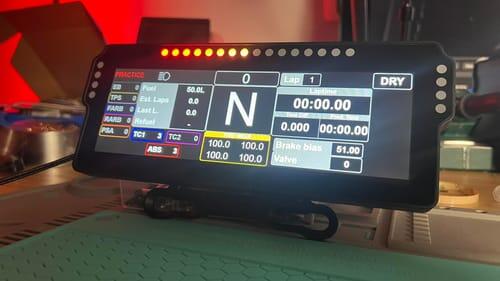
Compatible VI dashboards can show wheel and device information such as:
- Current bite point and selected preset
- Clutch mode and calibration state
- Active Multilink pair
- Push-pull configuration
- Encoder modes
- Firmware, dashboard and plugin versions
- Expansion-module status
VI Control Center also provides configurable dashboard telemetry labels. Keep labels short so they remain readable on compact wheel displays.
Troubleshooting and Support Reports
If a device does not appear:
- Check that the USB cable supports data.
- Connect directly to the PC where possible.
- Press Reload Devices.
- Wait after a firmware update; Windows may be registering a new USB identity.
- Confirm that the correct firmware was installed for the exact device.
Compatible devices can report missing or unresponsive internal expansion modules, such as analogue-to-digital converters and I/O expanders. Brief communication interruptions are filtered to avoid false warnings; persistent faults show a clear diagnostic message.
If you need help, select the affected device and create a Support Report. The generated ZIP can include device identity, firmware and plugin versions, USB details, supported capabilities, configuration, diagnostics and relevant SimHub log information.
Create the report while the affected device is selected and, where possible, while the issue is present. Attach it to your support request together with a short description of the problem and the steps required to reproduce it.